JPG or PNG: Which Is Better for Image to Word?
Choose the format that preserves the clearest text in the image you already have.
Updated September 3, 2026
The short answer
Use the clearest original file you have. PNG is often the better choice for screenshots, digital text, diagrams, and documents exported from software because it preserves sharp edges without lossy compression. JPG is usually practical for camera photos and scanned pages where file size matters.
Format alone does not determine OCR quality. Focus, resolution, contrast, orientation, glare, shadows, and repeated compression can matter more than the filename extension. A clear original JPG can produce a more useful result than a PNG made from a blurry copy.
How JPG and PNG handle document text
JPG uses lossy compression. It can make photographic files smaller by discarding visual information, but stronger compression may introduce blocks, color noise, and ringing around high-contrast letter edges. Those artifacts are easiest to notice around small dark text on a light page.
PNG uses lossless compression. Saving a PNG does not introduce the same JPEG artifacts, so it is well suited to screenshots and computer-generated documents with flat colors and crisp lines. PNG files can be larger for camera photos because photographic detail does not compress as efficiently.
| Source | Usually choose | Reason |
|---|---|---|
| Camera photo of paper | JPG | Most cameras already create JPG, and the original file keeps the available photographic detail. |
| Screenshot with small text | PNG | Lossless compression preserves sharp digital text edges and flat interface colors. |
| Scanner output | Original format | Use the clearest scanner file unless its size exceeds the upload limit. |
| Image with transparency | PNG | PNG preserves transparency, but visible text still needs a solid, contrasting background. |
| File saved many times | Earlier copy | Use the earliest available version to avoid accumulated compression or resizing damage. |
When JPG is the practical choice
Choose JPG when the document is a camera photo, a photographic scan, or an existing JPEG that is already clear. Keeping the original avoids an unnecessary export and preserves the detail that remains in the source.
Before conversion, zoom into the smallest important text. Look for smeared characters, square blocks, or light halos around dark letters. If those artifacts are already present, exporting the file as PNG will preserve the artifacts rather than remove them. A new photo or scan is the better fix when the source cannot be read comfortably.
When PNG is the practical choice
Choose PNG for screenshots, exported slides, interface text, diagrams, and other computer-generated images. It keeps hard edges and flat colors intact, which helps when the document contains small type or thin lines.
PNG can also be useful for scanned text when the scanner creates it directly. Do not convert a noisy camera photo to PNG expecting a cleaner result. The file may become larger while the original blur, noise, glare, and perspective remain unchanged.
Make a reliable choice
First identify where the image came from. Keep original camera photos as JPG and original screenshots as PNG. If you have both formats, compare the smallest important text at the same viewing size and choose the version with cleaner edges, stronger contrast, and fewer artifacts.
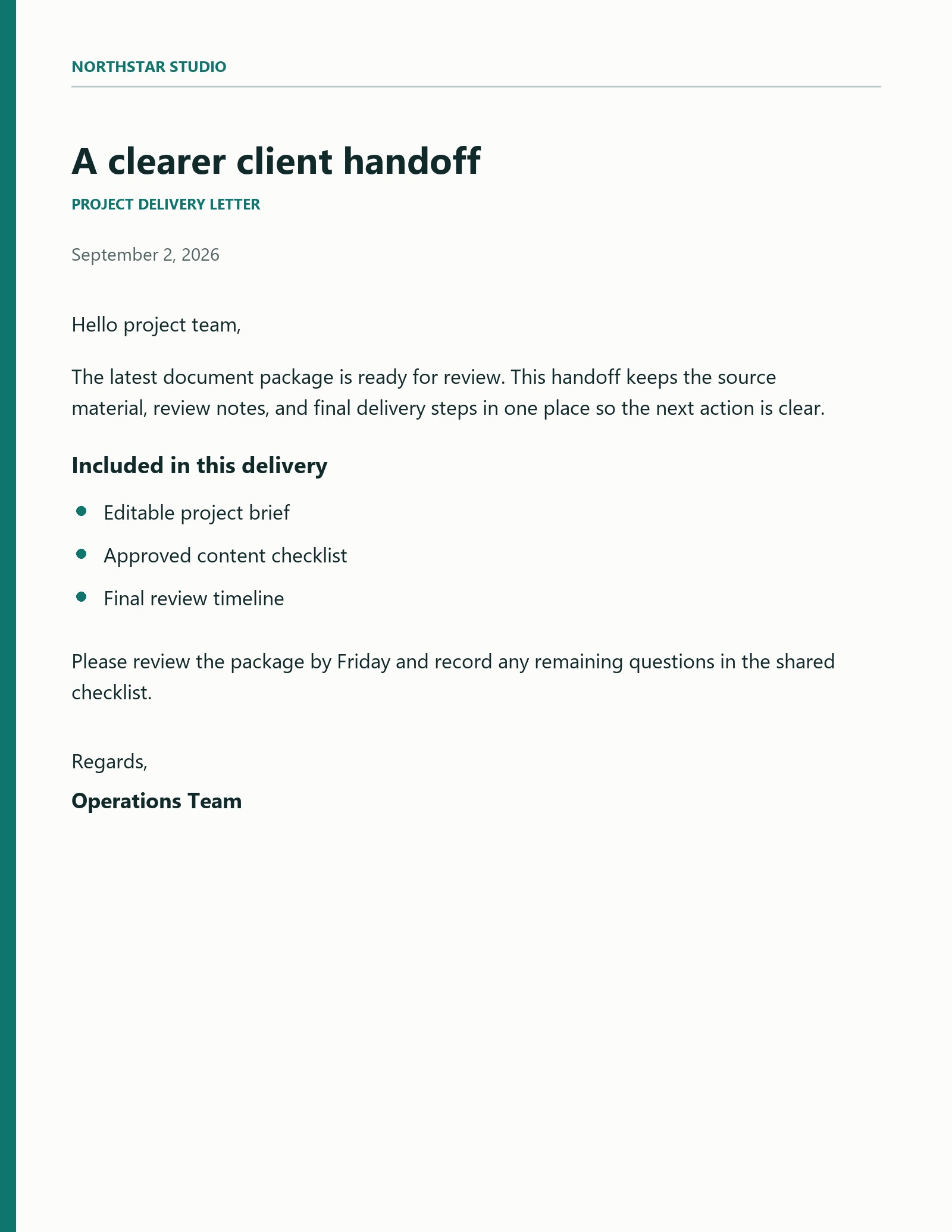
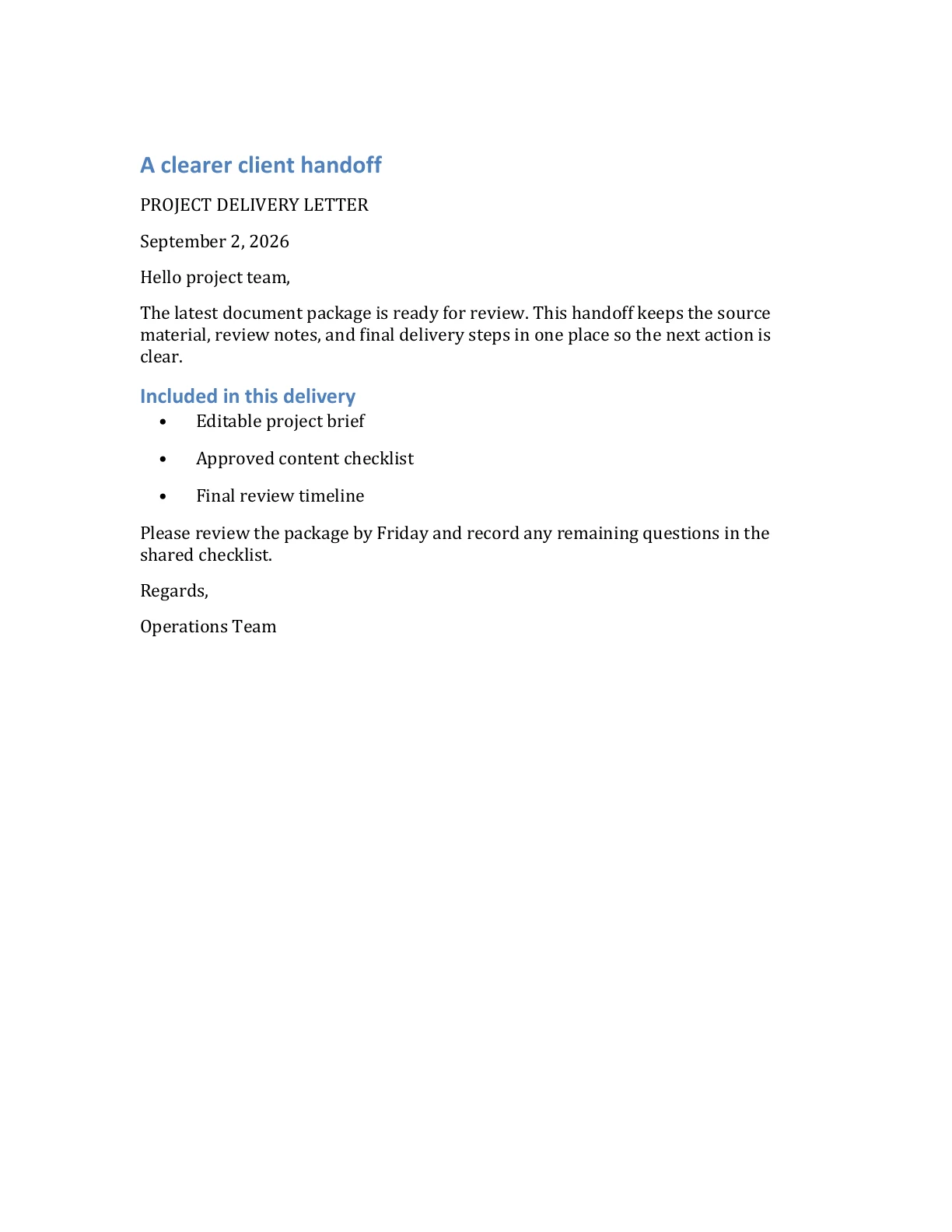
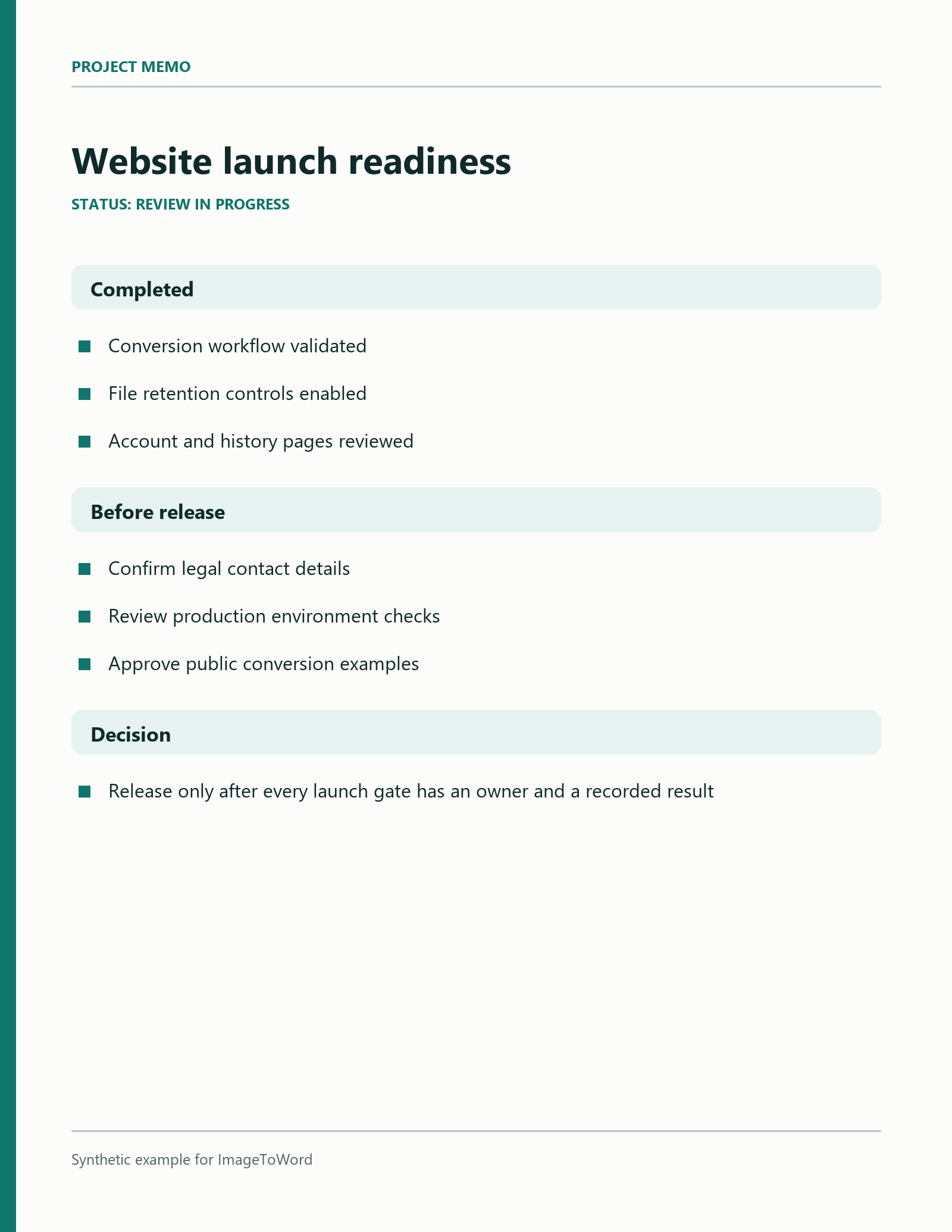
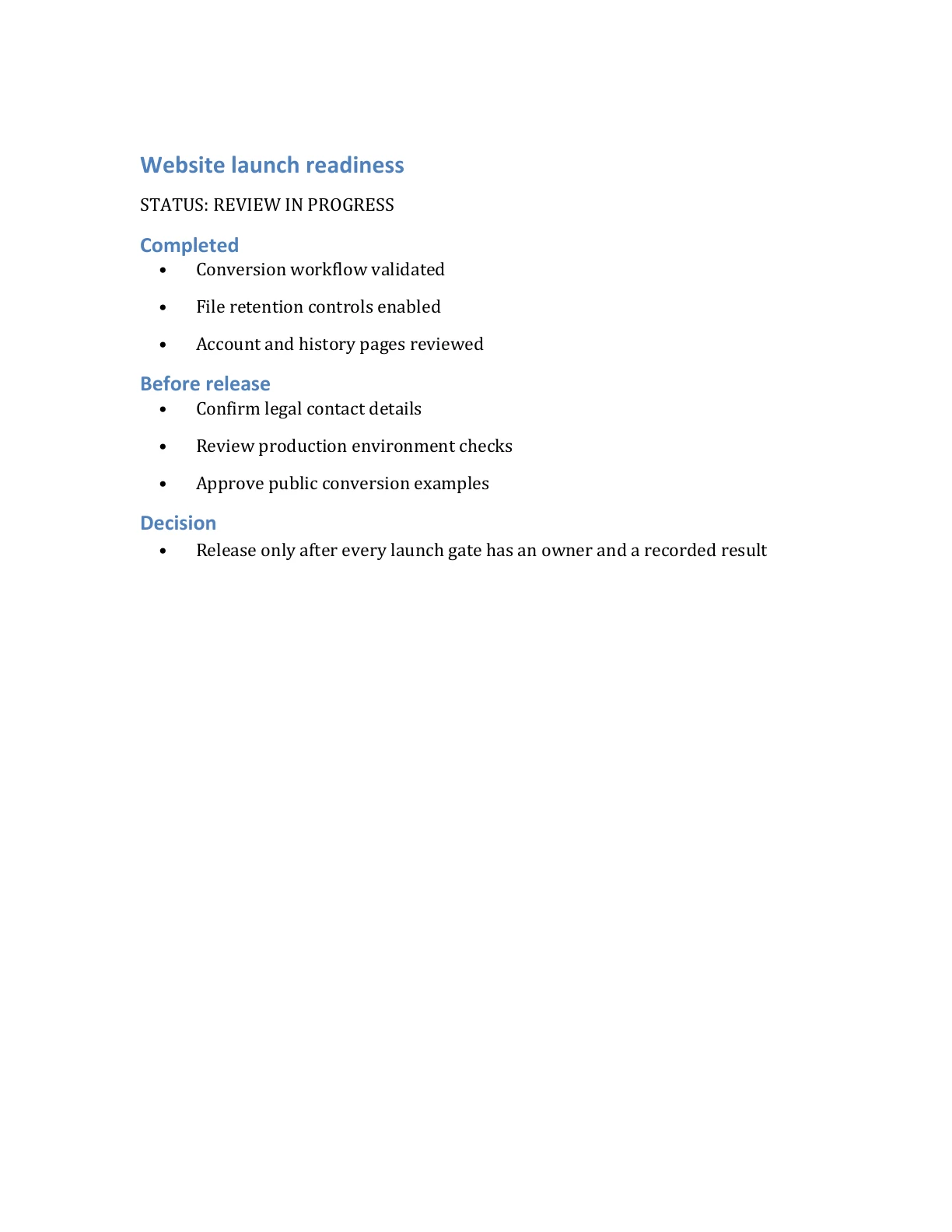
The example images on this page demonstrate successful JPG and PNG conversions from different synthetic documents. They are not a controlled head-to-head accuracy benchmark. Document content differs, and OCR results still require review.
Use JPG for original photos
Keep the original camera file when the page is focused, evenly lit, and readable.
Use PNG for original screenshots
Preserve crisp digital text instead of adding JPEG compression around letter edges.
Compare actual detail
Judge the smallest important text, not the format name or the file size alone.
Review the DOCX
Check text, numbers, reading order, and tables against the source after conversion.
Convert the file you have
ImageToWord supports both formats. The main converter accepts JPEG, PNG, and WEBP, while the JPG and PNG pages apply format-specific selection rules. Choose the route that matches your source and keep the original available for comparison.